Last updated on April 13, 2026 at 04:09 pm
There is no other medium as effective as video in telling stories, sharing experiences, and making connections with others. Whether it’s your creative travel videos of all time, birthday or anniversary milestones, or your child’s first-step videos, they encapsulate not just the visuals but also the emotions.
You might have used your digital camera, camcorder, iPhone, or smartphone to record the videos and saved them on a memory card, USB drive, hard drive, or external hard disk. If you encounter an error when trying to play the same video later, it may be corrupted or damaged and require repair; however, this is a common issue.
Why do saved video files get corrupted or damaged? Good Question!
A video file can be corrupted for various reasons, but the common causes are listed below
1.) Software Bugs
- Virus or malware issues can damage or destroy video files
- When your video editing or recording app, media player, and operating system is corrupted or outdated, video files often become damaged.
- Due to incomplete downloads, encoding errors, and file format changes, the file becomes unreadable because data is missing.
- Playback issues or data loss often occur when an incompatible program is used for video editing or conversion.
2.) Hardware Problems
- Physical damage, overheating, and power fluctuations on storage devices (like memory cards, hard drives, and USB drives) can lead to bad sectors, data loss, and format errors in your video files.
3.) Human Error (Most common cause – Permanent data loss)
- Accidentally deleting the video file or mistakenly formatting the drive/card
- Overwrite, rename, and transfer the files (Be careful here)
- Suddenly shutting down the recording application or switching off the device
✅ Prevention Tips:-
- Regularly backup your video files and create multiple copies by saving them on an external drive and uploading them to the cloud.
- Protect your internal/external storage devices from environmental factors – 100% loss of data
- Ensure your system apps are current and always opt for the latest version of any software
- Set up an antivirus program to safeguard your device against viruses, hackers, and spyware
- Only use storage devices from genuine and trustworthy brands such as Western Digital (WD), Seagate, SanDisk, and Samsung
- Connect or eject your external storage devices properly
5 Best Video Repair Software of 2026 (Windows and Mac)
The TechPcVipers team has evaluated video repair tools from 15 different companies based on various factors such as supported file formats, repair capabilities, repair outcomes, processing speed, pricing, privacy, and security. However, we are only picking up the 5 best video fixer tools
1.) Stellar Repair for Video
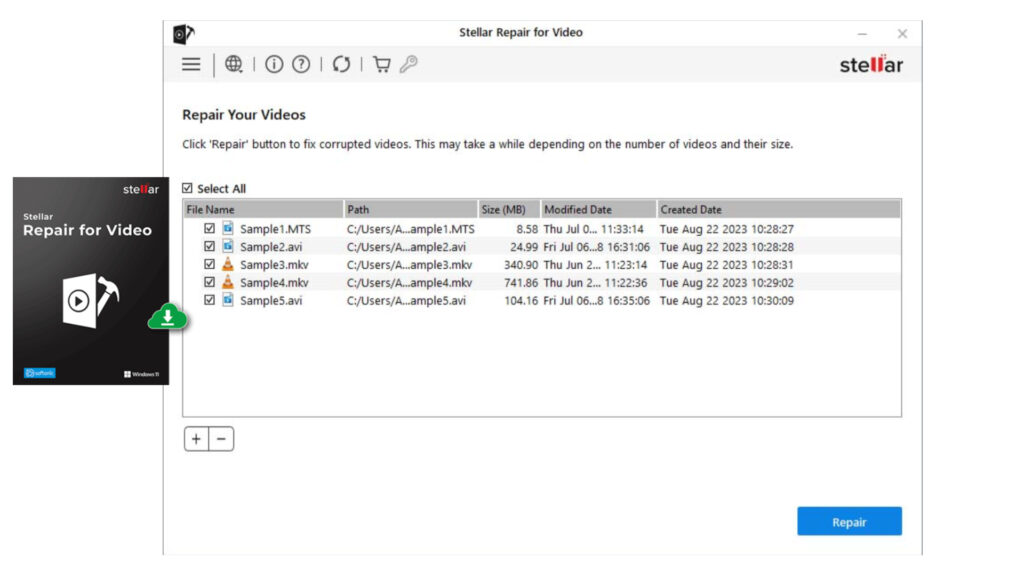
Stellar Repair for Video is a powerful tool to fix and repair corrupted MP4, MOV, AVI, MKV, AVCHD, MJPEG, WEBM, ASF, WMV, FLV, DIVX, MPEG, MTS, M4V, 3G2, 3GP, and F4V files.
Key Features
- Repair videos from storage devices such as memory cards, USB drives, SSD, HDD & CF cards, including footage from DSLR, DJI, GoPro & CCTV
- Fix corrupted video files on Android & iOS devices
- Repair multiple video files simultaneously without compromising the quality & integrity
- Save your repaired files anywhere on the drive or external storage medium
- Preview your repaired file before saving
| Pros | Cons |
| Easy to Use interface – In just 3 simple steps, repair the corrupted video file | When corruption is extreme, the chances of success depend upon testing the sample file |
| Advanced repair option for severely corrupted videos | In the trial version, you can only preview the file; you need to purchase the software to save the file |
| Premium edition with photo recovery and repair capabilities | |
| Support for high-resolution videos – HD, 4K & 8K |
Stellar Pricing
| Standard | Professional | Premium |
| Repair Corrupt or Damaged Video | Repair Corrupt Videos + Photos | Repair Videos + Recovers Deleted Photos + Repair Corrupt Photos |
| $49.99 | $59.99 | $69.99 |
Tips for Getting the Most from Stellar Video Fixer
→ Repair Videos from any camera & device
→ Your go-to tool to repair various file formats
→ Pricing looks quite affordable. I prefer buying the standard version, which costs $49.99 for a 1-year subscription if your corrupted files are not too severely damaged
→ Stellar repair tools are safe to use
→ Helpful for professional photographers
→ 4.8/5 Ratings on Trustpilot
OS: Windows, Mac
2.) Wondershare Repairit (AI Powered)
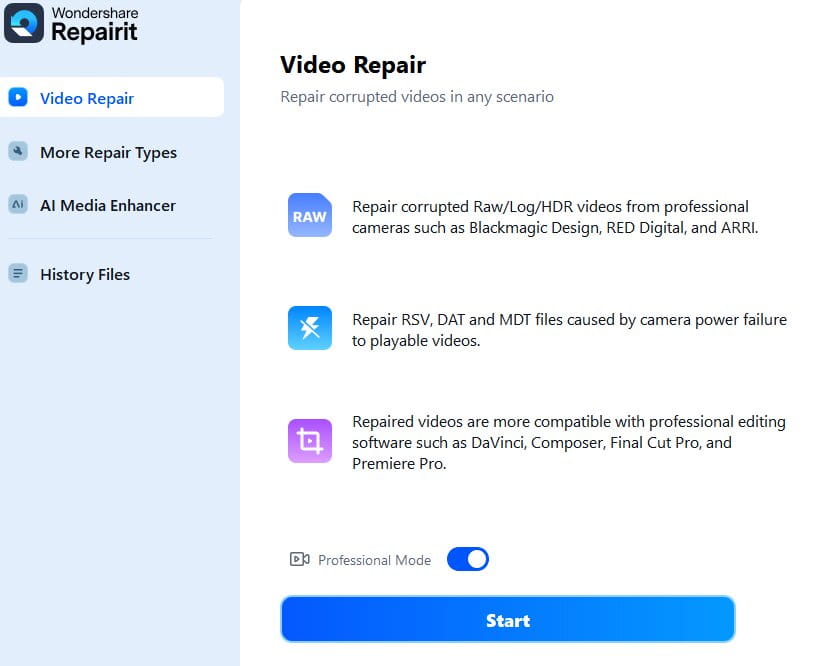
Founded in 2003, Wondershare is a global technology company known for creating video editing, data recovery, PDF management, and productivity tools. Recoverit is a flagship solution from Wondershare that uses the AI power of Wondershare Repairit to fix corrupted or damaged files, audio, videos, photographs, and emails in a matter of minutes.
Key Features
- Incredible Data Recovery Success Rate – Repairit has successfully restored data for 2 million users globally
- Repair files in corruption scenarios such as power surges, system crashes & updates, damages during transfer
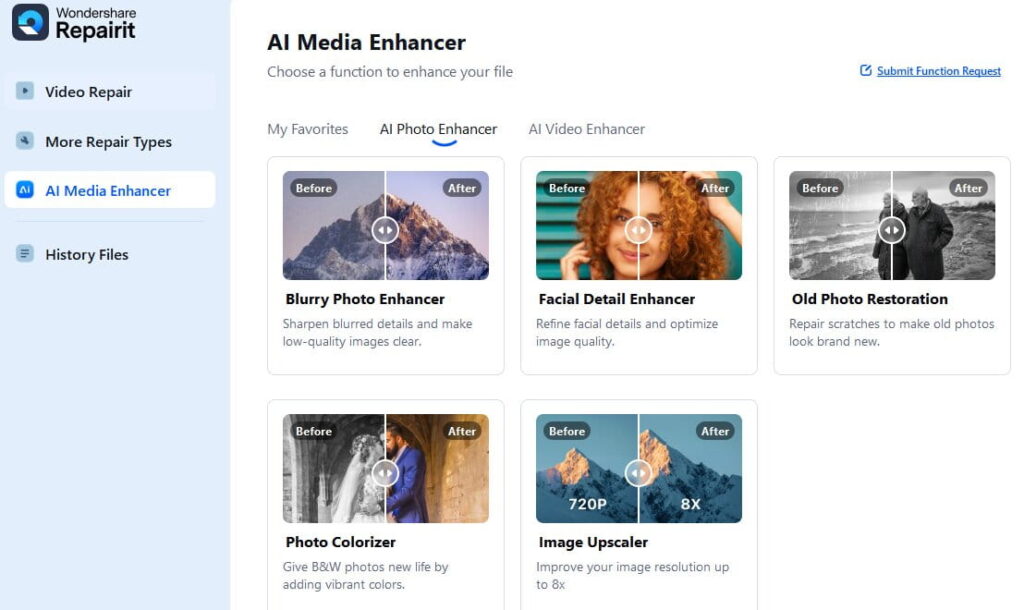
- Thanks to AI, Repairit’s patented AI technology ensures users can unlock the lost digital treasure with quality
- Simple 3-step recovery process (select location → scan → recover), making it easy to use for non-tech professionals
- Recoverit supports 1000+ file formats and multiple storage devices including HDD, SSD, USB drives, SD cards, and cameras
| Pros | Cons |
| Deep scan feature to use if any of the files are missed during the basic scan after the formatting or accidental deletion, but deep scanning takes several hours, depending on the file size | Expensive and Rigid Refund Policies |
| Preview your repaired files before restoring them | No guarantee that Repairit can repair all the damaged video files |
| Customer support is limited |
Wondershare Repairit is perfect for
→ Content Creators
→ Filmmakers
→ Vloggers
→ Photographers
→ Professionals who store and edit large video files
Wondershare Repairit Pricing
Windows version starting at 39.99 USD/month, MacOS version starting at 49.99USD/month.
OS:- Windows, Mac
3.) Remo Video Repair
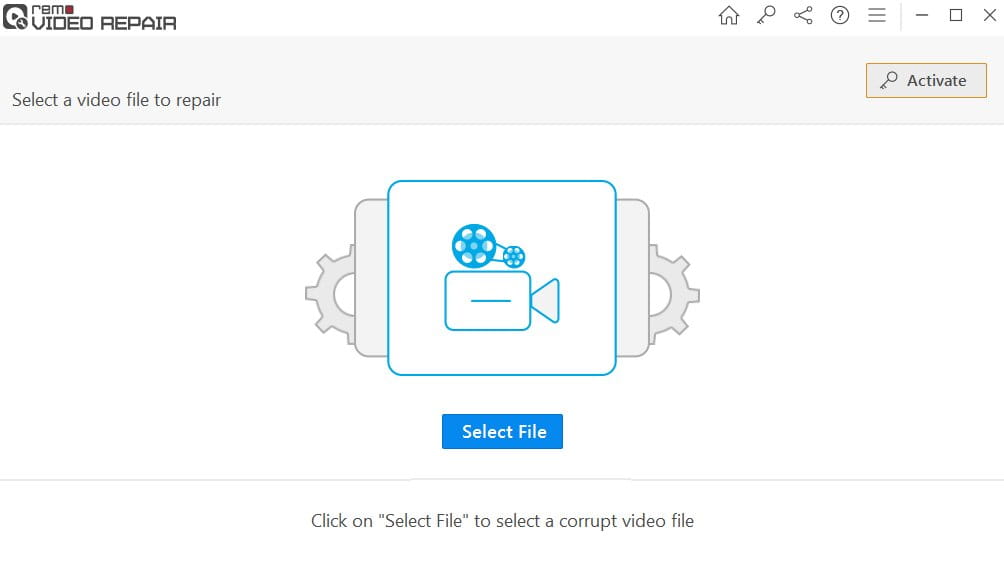
Remo Software is another leading data recovery company with decades of experience globally. Remo Video Repair is a simple remedy for broken, damaged, or unusable video files.
Key features:-
- Repair file formats such as MP4, MOV, AVI, DIVX, and XVID
- Supports HD, 4K, and even 8K videos recorded from cameras, smartphones, or drones
- Read-only repair process, which means original files remain unchanged during the repair
- Resolves scenarios such as video not playing sound, video stuttering or pixelated, audio video sync issues, video not playing after recovery, video unplayable on any of the media players, choopy playback, missing codecs & error messages like “can’t play video,” “unsupported file format,” “the file is corrupt,” etc.
| Pros | Cons |
| Tested over 500+ scenarios | You can’t download the repaired video in the free version |
| Easy to use and user-friendly ( 3 Step process) | |
| Advanced software that uses AI to repair videos | |
| Reliable tech support (100% free) if you face any challenges during the repair process |
4.) Tenorshare 4 DDiG Video Repair (AI-Powered)
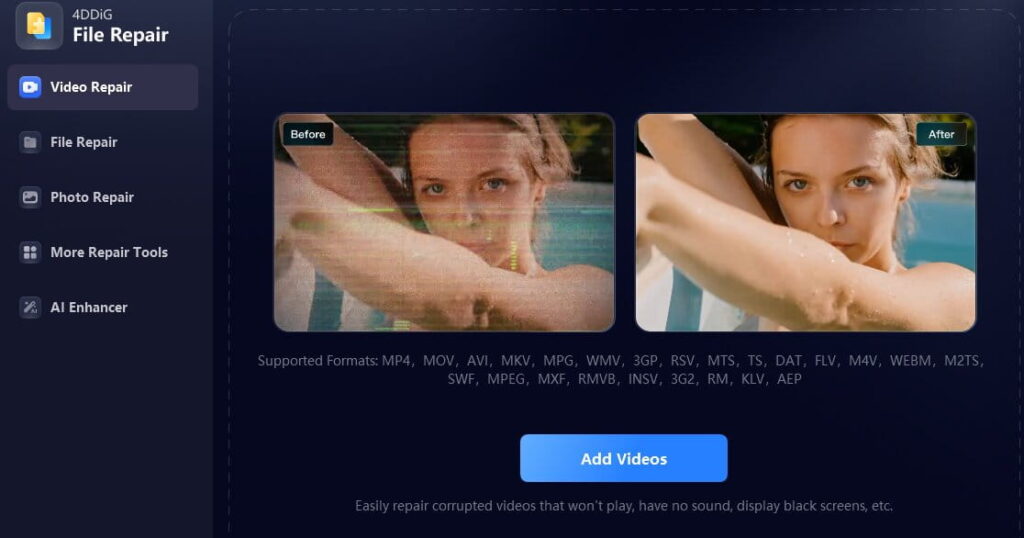
Tenorshare 4DDig Video Repair was developed by Tenorshare, which has been in the market since 2007 & known for helping consumers tackle data loss, file corruption, system repair and computer management problems
Key Features:-
- Repair videos in Batch
- Repair unplayable, corrupted, grainy, blurry, choppy and jerky video files
- Fix Video Play Error Codes such as 0xc00d36c4, 224003, 232011
- Repair multiple file formats & recovery is possible from all storage media
File Formats Support:- MP4, MKV, AVI, MOV, M4V, WMV, 3G2, 3GP, FLV, MPEG, MTS, MXF, RMVB and SWF files
Supported Storage Mediums:- hard drives, SD cards, pendrives, USB devices, PCs, and laptops
Camera Devices Support:- Canon, Nikon, Sony, GoPro, DJI Drones
Enhance and Upscale videos with AI (Special Feature)
Transform grainy and ancient video footage into high resolution in just a few clicks. Using advanced AI models, you may increase video quality from SD to HD, HD to 4K, and even 4K to 8K resolution. Additionally, you can incorporate natural hues into your black-and-white videos.
| Pros | Cons |
| AI Video Enhancer | Unlock premium features only in the full version |
| High Speed Repair | |
5.) Fix.Video (No software installation needed, runs in browser)
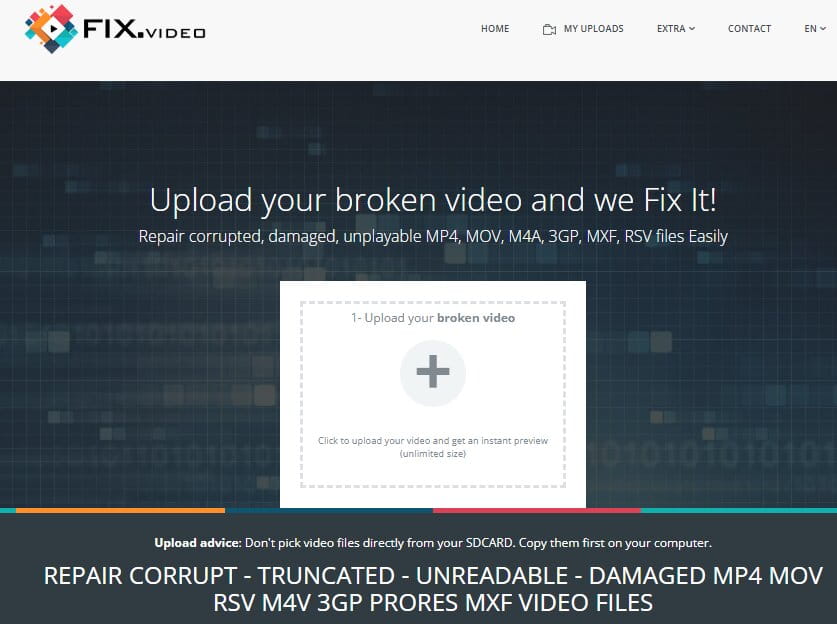
If you are not comfortable purchasing software, you can utilize Fix.video to repair corrupted and damaged video file types such as MP4, MOV, M4A, 3GP, MXF, and RSV. Upload video files of any size and receive a quick preview.
During testing, Fix. video successfully repaired MP4, MOV, AVI files and works exceptionally well for videos from phones, drones, CCTV, and DSLRs.
You can expect a low-quality preview of the repaired video, When I tried downloading the repaired video file I was shocked to see “Payment of $15 to download a full version of the video”. Indeed there’s no fixed pricing, you can see the final pricing once your all files are repaired and you are all set to download the video so i would say it’s not a free tool. As per Trustpilot users are not really happy using this online service so i would say buy a software at a fixed cost and repair unlimited videos.
| Pros | Cons |
| Fast processing speed | The user interface could be more intuitive |
| File Upload – No size limits | Preview of repaired files is always in low resolution |
| Support top video file formats | No fixed pricing to download the repaired file |
| Deletes files after repair for privacy |

)